Debugging containers with Docker Gremlin
It’s been a while since I’ve written about Docker here, but this time I received exciting news, the Docker Gremlin. An extension that significantly changes how you debug your containers.
The problem#
The big question here is: How do you debug Docker containers? Let’s create a scenario. Imagine you have the following container:
FROM node:alpine
COPY index.js package.json /src/app/WORKDIR /src/app
ENTRYPOINT node index.jsTo keep it simple, let’s create code that is a server and, 50% of the time, returns an error to the user, and imagine we don’t know why this error is happening. Something like this:
const { createServer } = require('http')
const server = createServer((req, res) => { if (Math.random() > 0.5) { res.writeHead(500, { 'Content-Type': 'text/plain' }) res.end('Oops') return } res.writeHead(200, { 'Content-Type': 'text/plain' }) res.end('Hello World\n')})
server.listen(process.env.PORT || 3000)When we build our image with the command docker build -t server-node . using our Dockerfile and run it with docker run -p 3000:3000 server-node, we’ll have a server running on port 3000 that responds with Hello World 50% of the time.
But if we want to know why this container isn’t executing successfully, even though it works on our machine, we’ll need to debug what’s inside.
Personally, I like a tool called Dive, which lets you explore the layers you created inside your container. That’s great for understanding how the system is structured, but it doesn’t help much when you need to read the files inside, since Dive doesn’t allow that.
A technique many people use is to simply enter the container with docker exec -it <name> /bin/sh and run commands inside. We can do this for our container, but as soon as we try to edit the index.js file with vim, we get a classic error: the vim package isn’t installed:
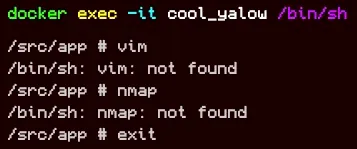
If we try any other tool, we’ll see they don’t exist either. This is true for most, if not all, production containers. Even more so in containers with images built from scratch, which are images with no base operating system. They’re basically just a binary, so we can’t do even that.
This approach is fine in most cases when we’re going to replace the container, but it’s another way to clutter our environment. And that’s where Gremlin comes in.
Docker Gremlin#
Gremlin is an extension for Docker Desktop that lets you enter the layers of containers through its own debug shell, with all the tools you need. If you can’t find a tool, Gremlin can install it for you in that same environment, without cluttering your container and keeping it available for future sessions too!
To install Gremlin you need to have Docker Desktop installed. From there, just go to the bottom left corner and click “Add Extensions”:
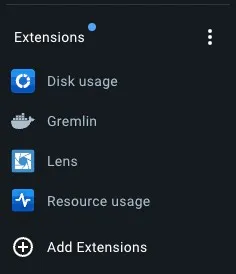
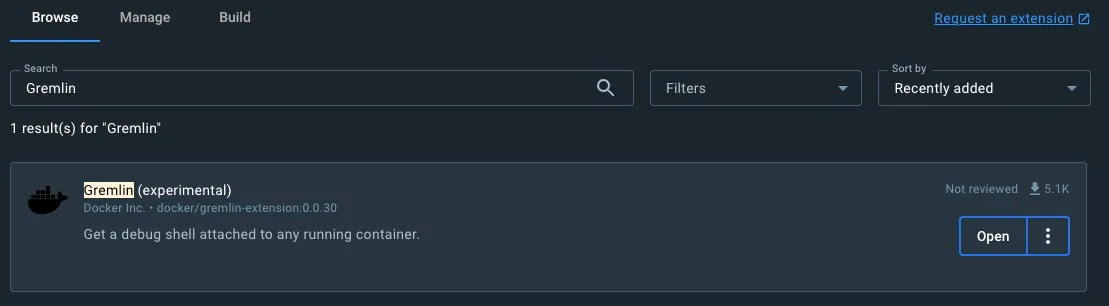
From there, search the search tab for gremlin and click the install button for the extension that was developed by Docker. When it’s installed, you’ll have Gremlin listed as shown above and the button will change to Open, like below:
There’s a famous Chaos Engineering tool for DevOps called Gremlin. That’s not the one we’re looking for.
From now on you’ll have a command in your terminal called gremlin:
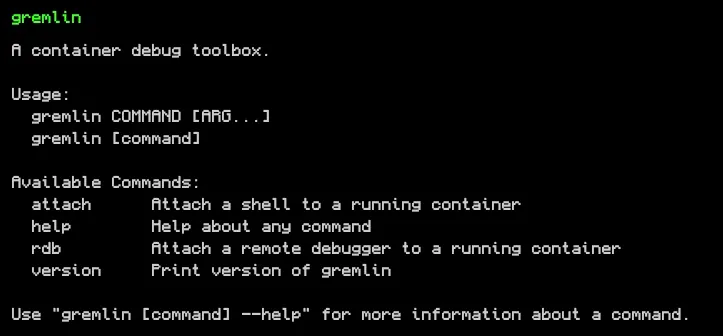
Right now it only has one command, attach. This is the command you’ll use to open a new shell in a running container. Let’s run our container locally with the command:
docker run -d --name server-node -p 3000:3000 server-nodeNow you can run gremlin attach server-node and see the magic happen:
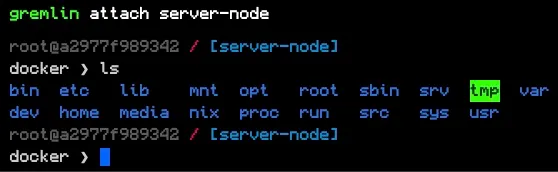
Notice we’re inside a separate shell from Docker. You can run all the commands you already know, but the real magic happens when you need external tools. Let’s try reading our file with vim using the command vim /src/app/index.js. Remember that we couldn’t do this before because Vim wasn’t installed.
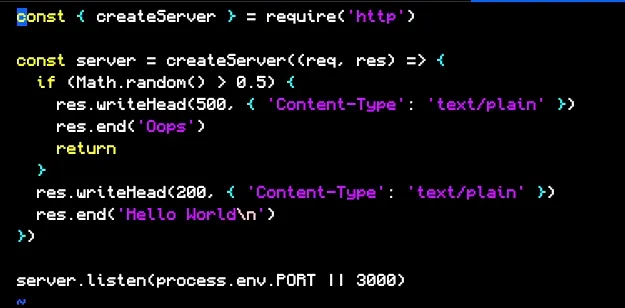
Gremlin comes with Vim installed by default and you can use it to read any file.
Installing new packages#
Let’s say we want to know which ports we’re opening inside the container. We can do this in several ways, but I want to show that we can install packages like nmap to scan network ports using the install <package> command.
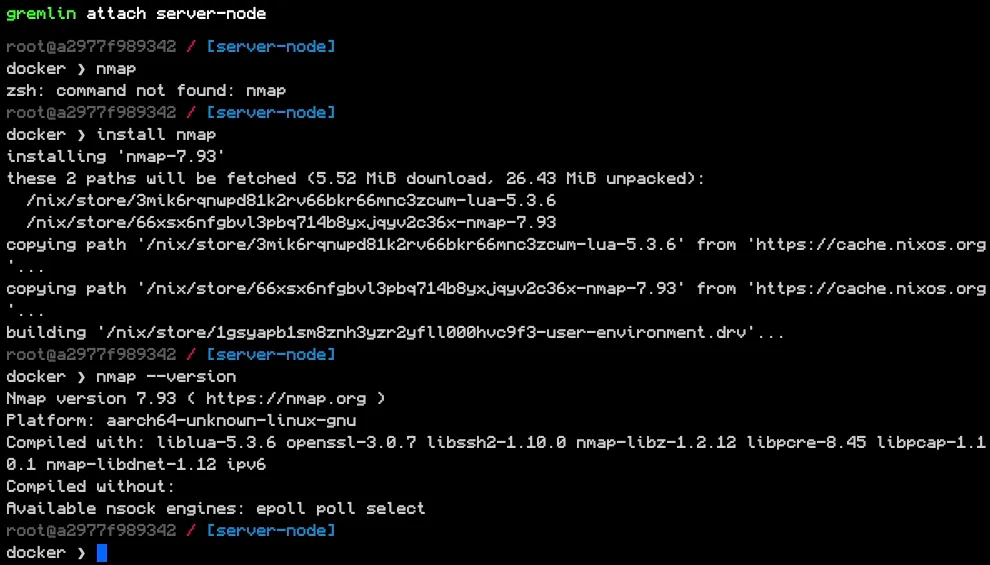
Notice that before we installed it, we got an error when running it, but after that we could use nmap. Now just run nmap localhost:
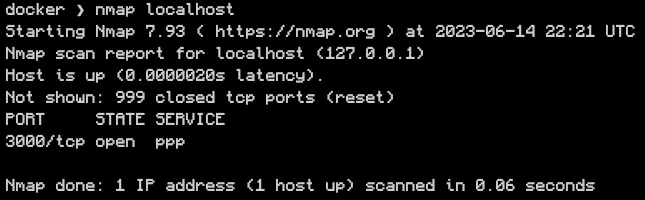
When you want to uninstall, just run uninstall <package>. And to exit the Gremlin console, just type exit.
Scratch images#
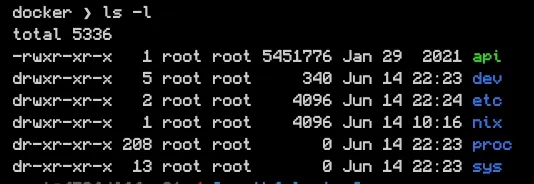
Gremlin also works on scratch images. For example, I have a Go image that was created as an example of a from-scratch image. We can run docker run -d --name vote-api -p 80:8080 khaosdoctor/go-vote-api and then gremlin attach vote-api and you’ll see the same shell:
Conclusion#
Gremlin is an interesting and highly important tool you can use to debug your containers in a more practical way than manually entering them and cluttering the contents.
This was a short article about it. Keep in mind that it’s experimental and can change at any time. As soon as changes happen, just come back here and I’ll write about them!